

Adding users to your Otohost account is simple and straightforward. First, you need to log in to your account.
Steps to Add a User
- Click on the profile icon (👤) located in the upper-right corner of your Client Panel.
- From the dropdown menu, navigate to the "User Management" section.
User Management Page
- Once you are on the User Management page, click the "Invite New User" button.
Inviting a New User
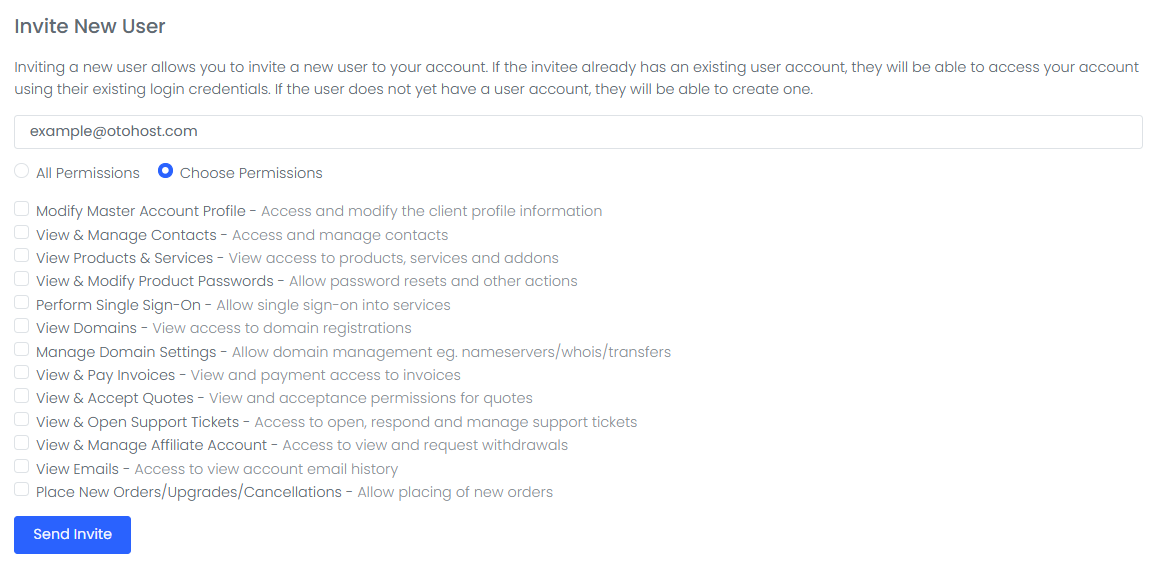
- Enter the email address of the user you would like to add to your account.
Assigning Permissions
- Select the permission level you would like to grant to the user:
- All Permissions: Grants the user full access to all account features and functions.
- Choose Permissions: Allows you to assign specific permissions to the user.
- If you select "Choose Permissions," mark the permissions you would like to assign to the user.
Sending the Invitation
- After completing all settings, click the "Send Invite" button.
Accepting the Invitation
- Once the invitation has been sent, the user must accept it by clicking the invitation link received via email.
Completed
After the user accepts the invitation, they will be successfully added to your Otohost account. They will then be able to access the account and perform actions according to the permissions you have assigned.

