

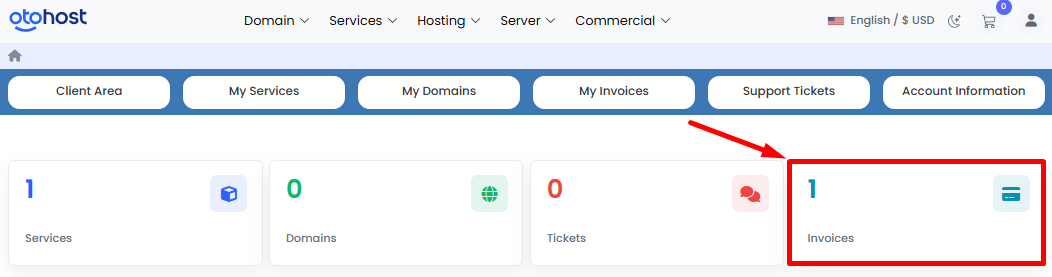
You can use the My Invoices page to easily manage your billing activities. On this page, you can view all your invoices, check their payment status, and pay any outstanding invoices.
Viewing Your Invoices
-
Log in to your Client Area.
-
Click on the "My Invoices" tab from the top menu.
-
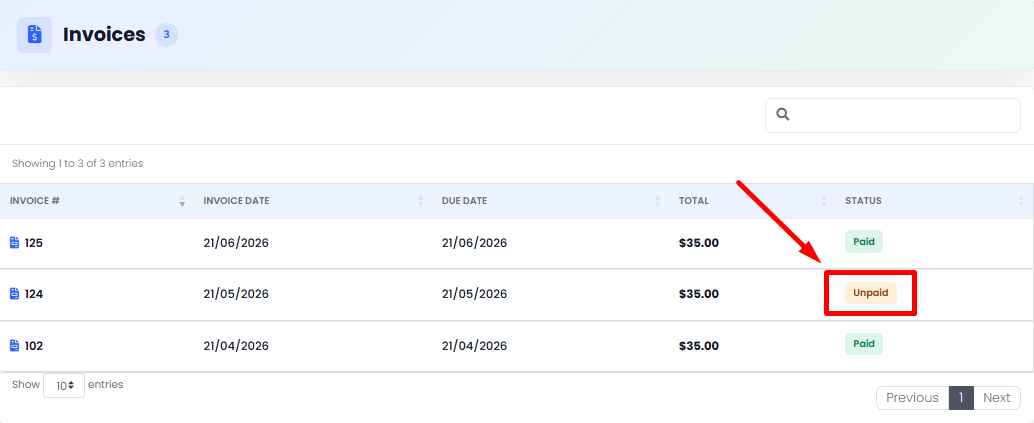
A list of all your invoices will be displayed.
-
For each invoice, you can view the following information:
-
Invoice Number
-
Invoice Date
-
Due Date
-
Invoice Total
-
Payment Status
-
Supported Payment Methods
- Credit / Debit Cards
- Crypto Currency
Invoice Statuses
-
Paid: The invoice has been successfully paid.
-
Unpaid: The invoice has not yet been paid and is awaiting payment.
Viewing Invoice Details
-
Click on the invoice number of the invoice you wish to review.
-
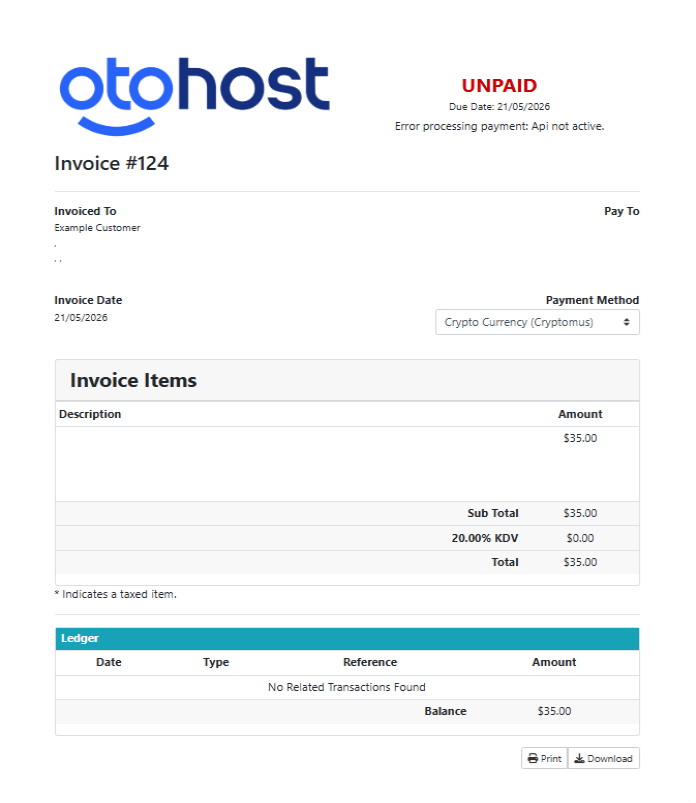
On the invoice details page, you can view information such as service details, payment amount, and payment method.
Paying an Invoice
-
Select the invoice with the "Unpaid" status.
-
Choose your preferred payment method.
-
Click the "Pay Now" button on the invoice details page.
-
Enter your payment information and complete the transaction.
-
Once the payment is successful, the invoice status will automatically be updated to "Paid".
Searching and Filtering Invoices
If you have a large number of invoices, you can quickly find a specific invoice using the search box located in the upper-right corner of the page.
Help and Support
If you have any questions regarding your invoices, payments, or billing activities, you can create a support ticket to contact our technical support team. Our team will be happy to assist you as soon as possible.

