

To enhance the security of your account, you can easily update your password from the Change Password page. Using a strong and unique password helps protect your account against unauthorized access.
Accessing the Change Password Page
-
Log in to your Client Area.
-
Click on the profile icon (👤) located in the upper-right corner.
-
Select “Change Password” from the dropdown menu.
-
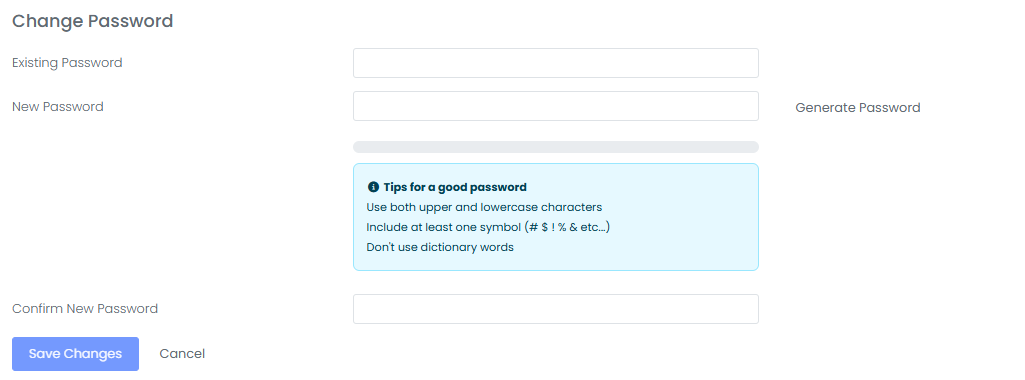
On the Change Password page, enter your current password and new password details to complete the update process.
Updating Your Password
To change your password, fill in the following fields:
-
Current Password: Enter the password you are currently using.
-
New Password: Enter the new password you would like to use.
-
Confirm New Password: Re-enter your new password to confirm it.
If you prefer, you can use the “Generate Password” option to create a strong password automatically.
Tips for Creating a Secure Password
To improve your account security, it is recommended that your new password meets the following criteria:
-
Use a combination of uppercase and lowercase letters.
-
Include at least one number.
-
Use special characters (e.g.,
#,$,%,!,&). -
Avoid easily guessed words or phrases.
-
Do not reuse passwords that you have used previously.
Saving Your Changes
-
After filling in the required fields, click the “Save Changes” button.
-
The system will save your new password and display a confirmation message once the update has been completed successfully.
Important Information
After changing your password, you may be required to log in again for security purposes. It is recommended that you store your new password securely and do not share it with anyone.
Help and Support
If you encounter any issues while changing your password, you can create a support ticket to contact our technical support team. Our team will be happy to assist you as soon as possible.

